Virtuoso Server WebID?+TLS+Delegation Setup
The following steps guide you through the process of configuring a Virtuoso instance to accept SQL or HTTP connections over TLS, where the server in question is identified using a Self-Signed Certificate:
- Create a Self-Signed Certificate using the
System Admin -> Security -> Public Key Infrastructuretab of the Virtuoso Conductor:
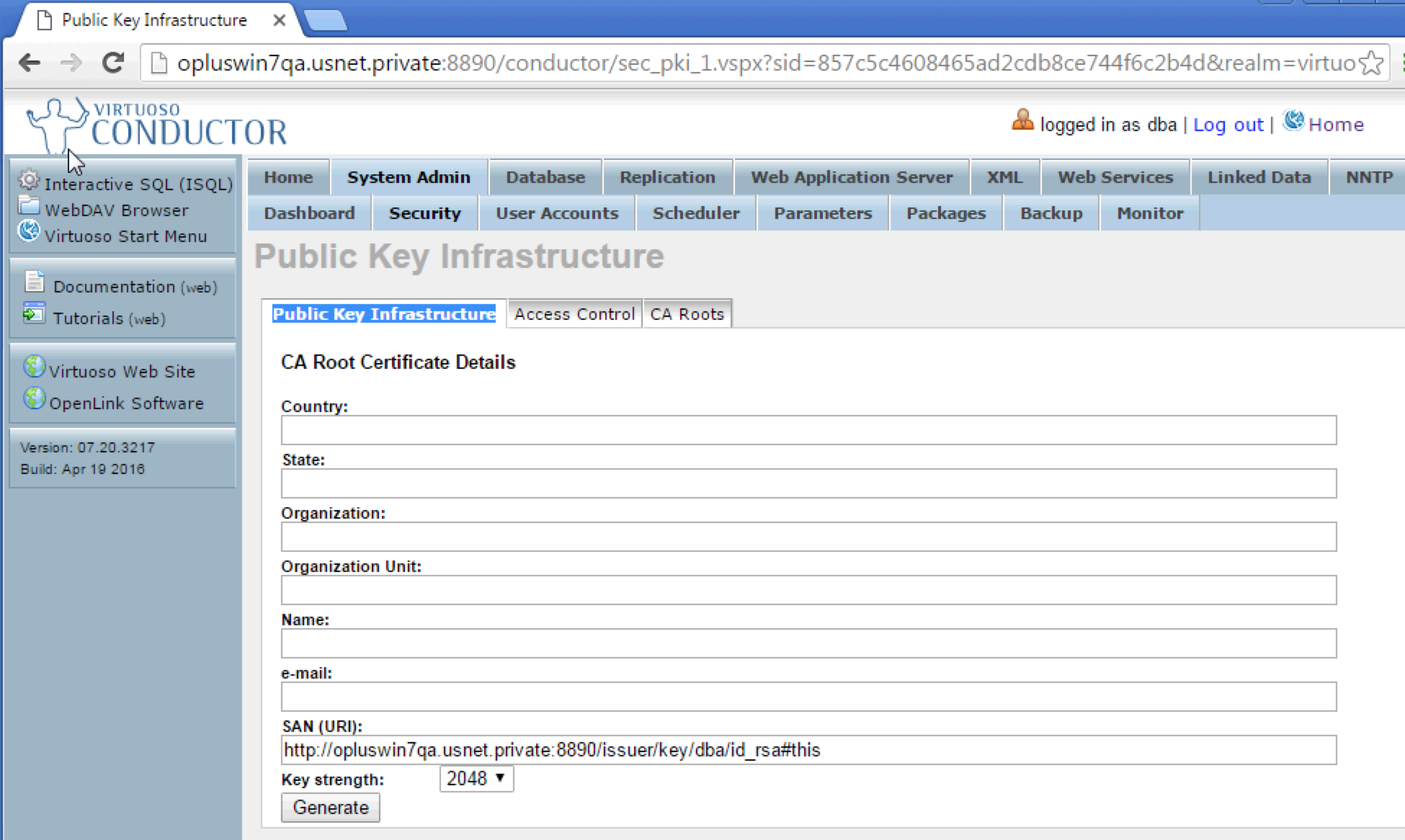
- Complete the CA Root Certificate details and click
generatebutton, note theNamevalue must be the hostname for the HTTPS listener to be created in a later step:
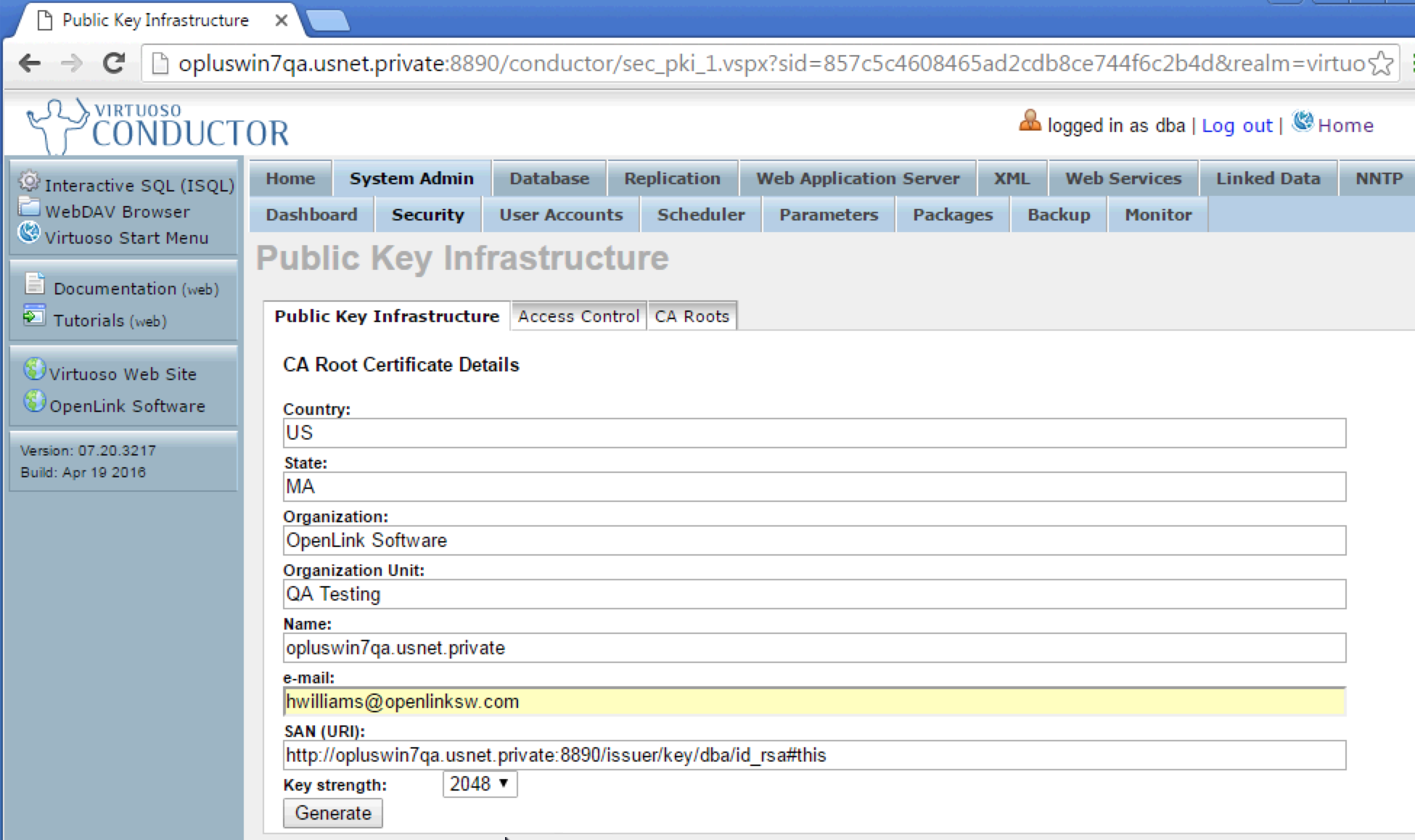
- The certificate is now created, click on the ?Configure HTTPS Listeners? button to configure the server for secure HTTP access:
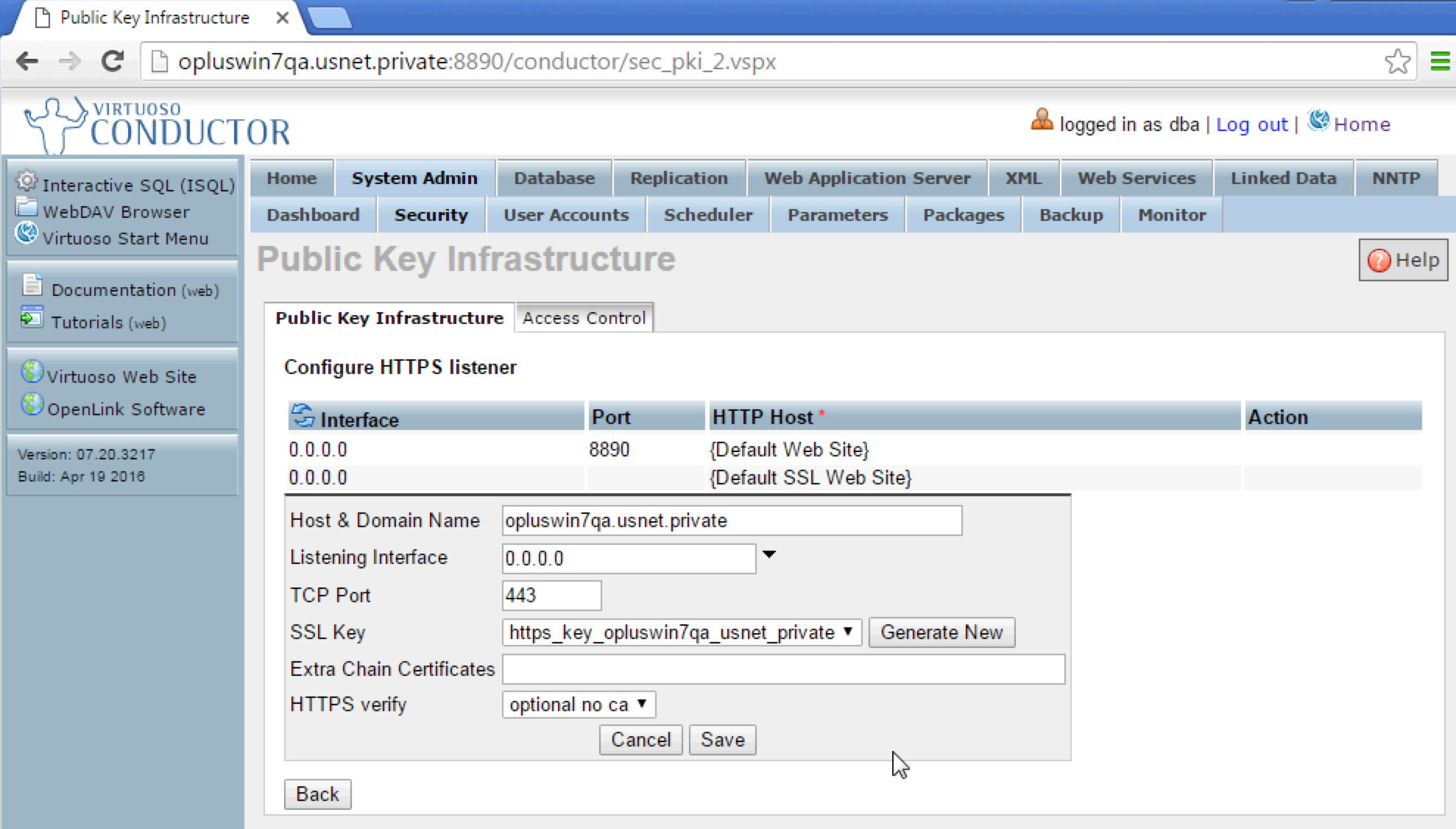
- Enter the required parameters for the HTTPS Listener and click the
Generate Newbutton to generate a new self signed certificate for use by the server and then click theSavebutton to save the HTTPS Listener which will be automatically started. Note if running on the default 443 https port then Virtuoso must have been started with Admin or root level privileges for the port usage to be allowed by the OS:
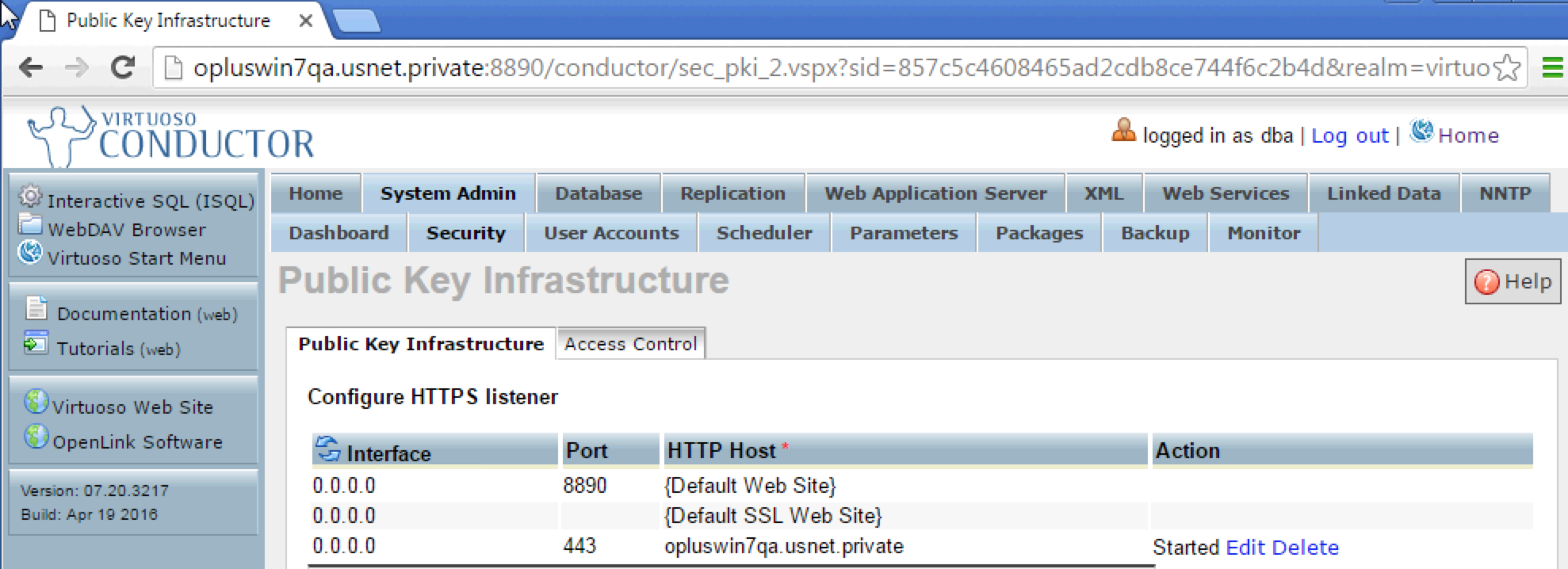
- The new HTTPS Listener should now be listed as and available as a
startedinterface.
- Use the Virtuoso generated self signed cer/tificate stored in the Virtuoso database to setup the SQL SSL port, by referencing the certificate by name (i.e.
https_key_opluswin7qa_usnet_private in the example) proceeded by the
db:prefix, in the[Parameters]section of the virtuoso.ini file as below:
SSLServerPort = 1113 SSLCertificate = db:https_key_opluswin7qa_usnet_private SSLPrivateKey = db:https_key_opluswin7qa_usnet_private X509ClientVerify = 3 X509ClientVerifyDepth = 15 X509ClientVerifyCAFile = db:https_key_opluswin7qa_usnet_private - Restart the Virtuoso Server to active the SQL SSL server listener and check the virtuoso.log file to ensure it has successfully started:
11:21:44 OpenLink Virtuoso Universal Server 11:21:44 Version 07.20.3217-threads for Win64 as of Apr 19 2016 11:21:44 uses parts of OpenSSL, PCRE, Html Tidy 11:21:44 Registered to Virtuoso 11:21:44 Personal Edition license for 50 connections 11:21:44 Issued by OpenLink Software 11:21:44 This license will expire on Tue Sep 27 06:20:12 2016 GMT 11:21:44 Enabled Cluster Extension 11:21:44 Enabled Column Store Extension 11:21:44 Database version 3126 11:21:44 SQL Optimizer enabled (max 1000 layouts) 11:21:45 Compiler unit is timed at 0.000354 msec 11:21:47 Roll forward started 11:21:47 Roll forward complete 11:21:48 Checkpoint started 11:21:48 Checkpoint finished, log reused 11:21:48 SSL server online at 1113 11:21:48 HTTP/WebDAV server online at 8890 11:21:48 Server online at 1111 (pid 3420) 11:21:49 ZeroConfig registration Virtuoso - The following Virtuoso applications should be installed from the
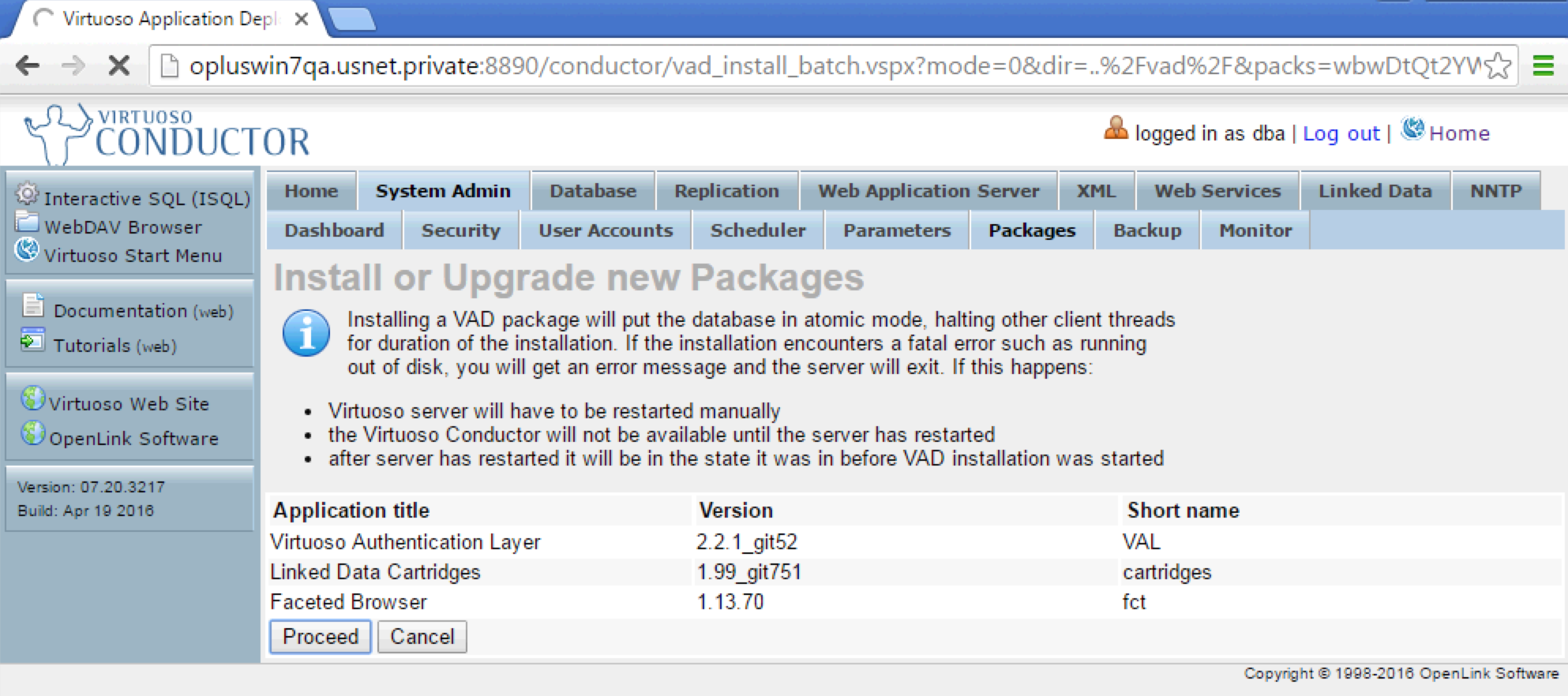
System Admin -> Packagestab of the Conductor:
- Sponger Cartridge VAD - To enable querying of remote resource URIs
- Faceted Browser VAD - To provide human readable form of Web ID Profile documents and ACLs
- Virtuoso Authentication Layer (VAL) VAD - To enable ACLs for be setup and enforced
- Note the [URIQA] DefaultHost? param in INI file (virtuoso.ini) must be set to valid hostname to be used by VAL
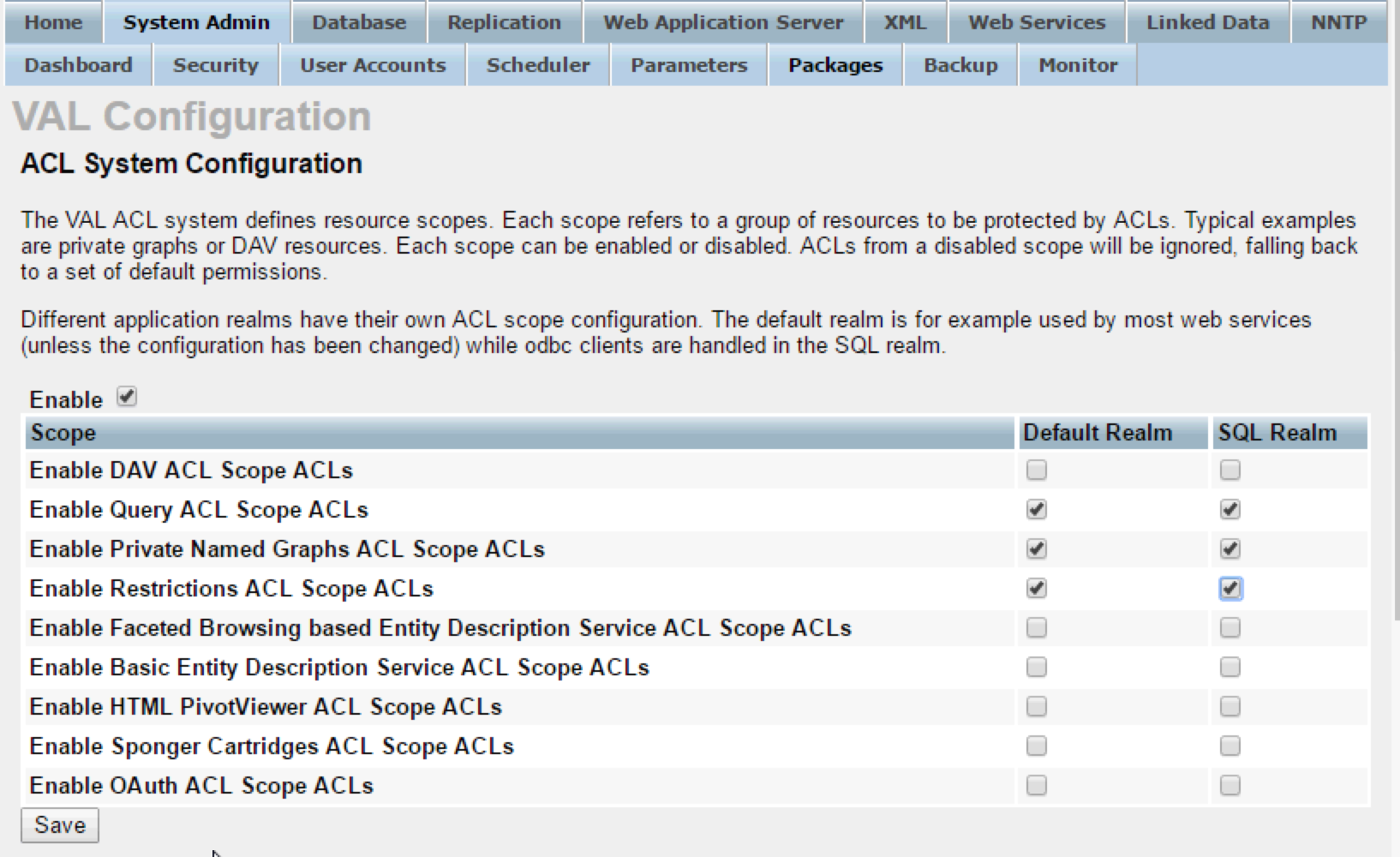
System Admin -> Packages tab (or click the back to packages button) of the Conductor, for the newly installed VAL package select the configure option on the right, and enable the Default and SQL Realms for the following ACL scopes and click the save button: - Enable Query ACL Scope ACLs
- Enable Private Named Graphs ACL Scope ACLs
- Enable Restrictions ACL Scope ACLs